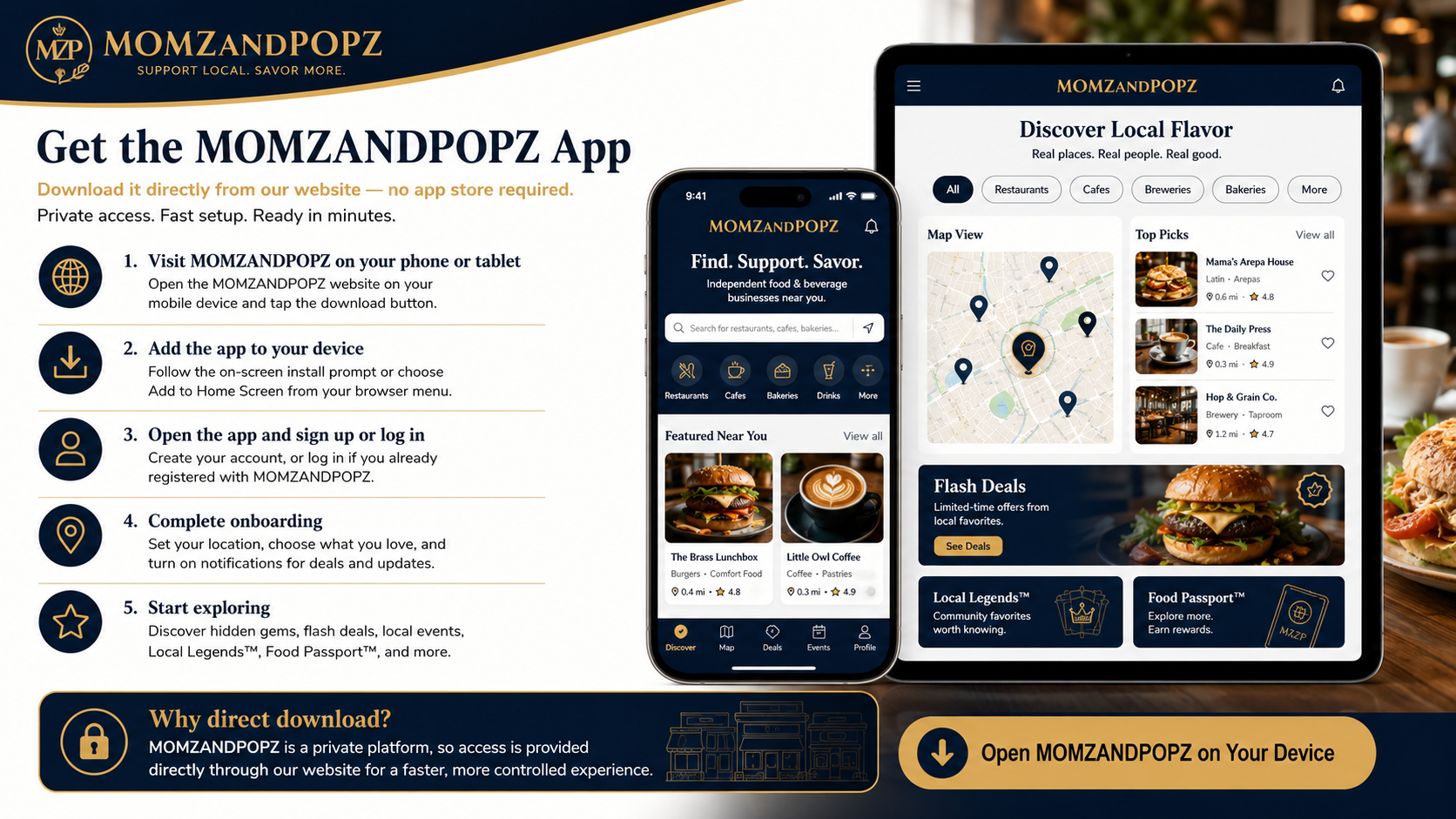
Five Steps to Your MOMZANDPOPZ App
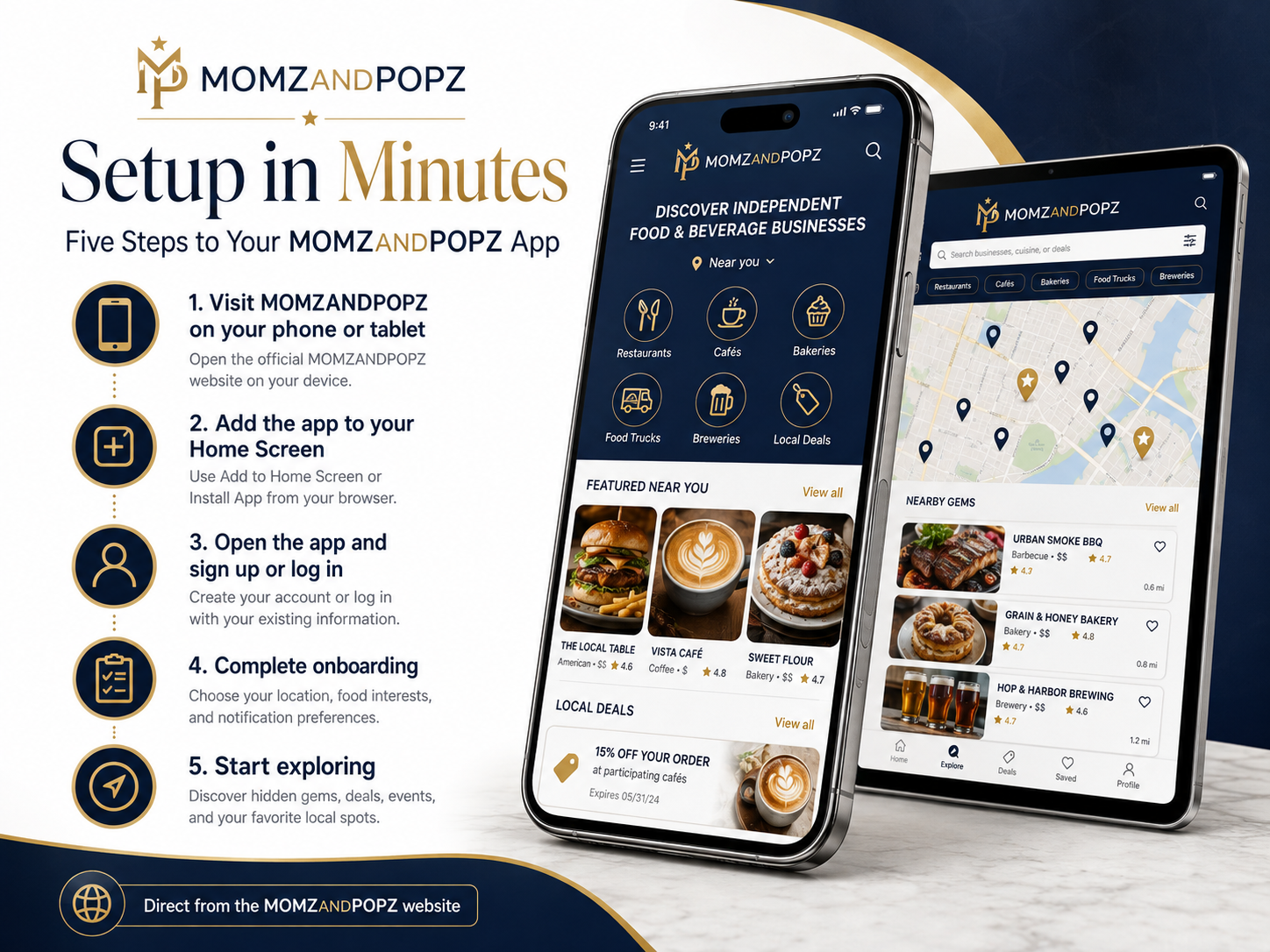
1. Visit MOMZANDPOPZ
Open the MOMZANDPOPZ website on your mobile device and tap the download button.
2. Add the App
Follow the on-screen install prompt or choose Add to Home Screen from your browser menu.
3. Sign Up or Log In
Create your account, or log in if you already registered with MOMZANDPOPZ.
4. Complete Onboarding
Set your location, choose what you love, and turn on notifications for deals and updates.
5. Start Exploring
Discover hidden gems, flash deals, local events, Local Legends™, Food Passport™, and more.
Before You Get Started
You'll need:
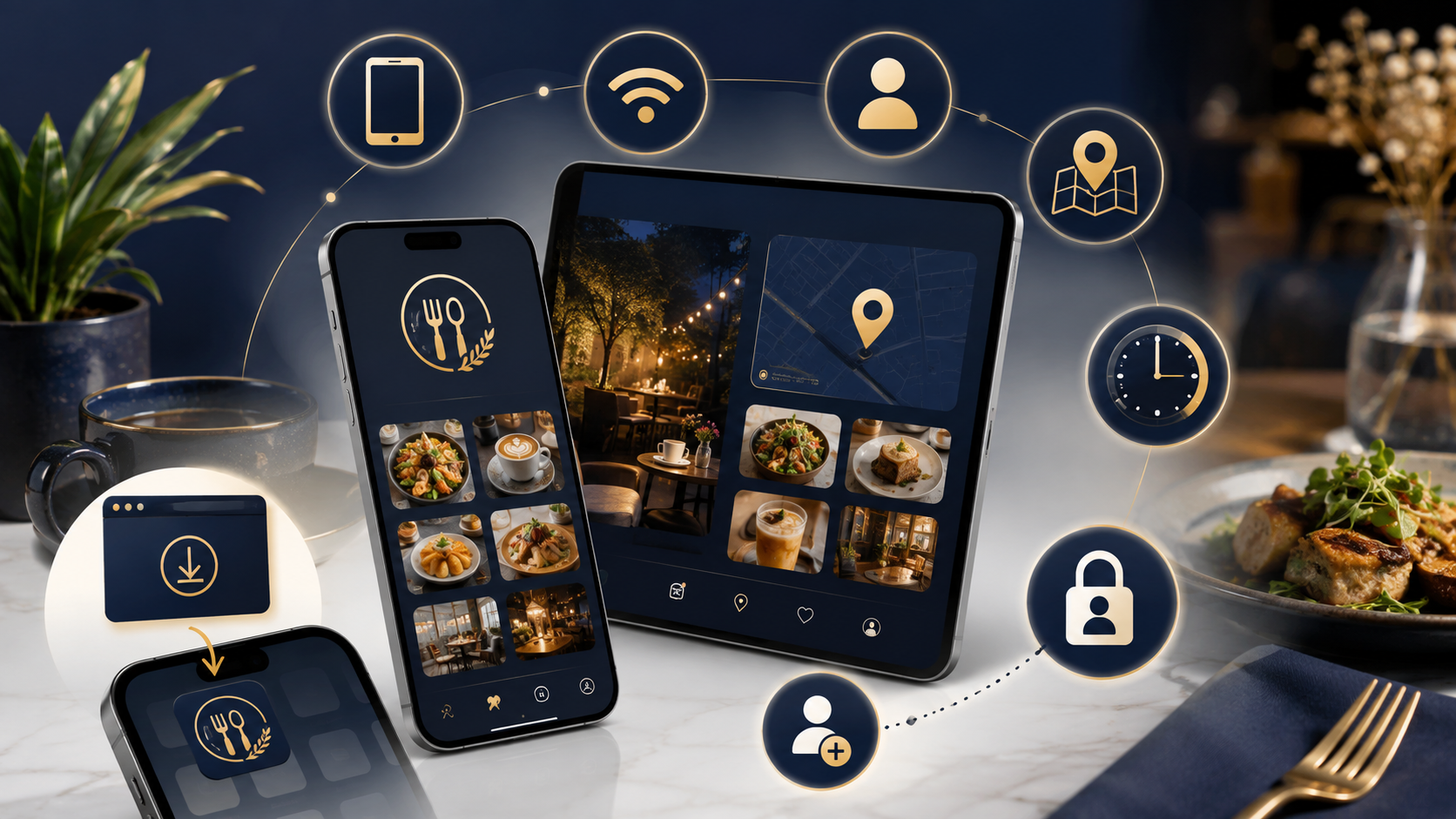
If you haven't registered yet, you can create your account during the setup process.
No App Store. No Play Store. No Problem.
Private Access Fast Setup Works From Your Home Screen
Choose Your Device
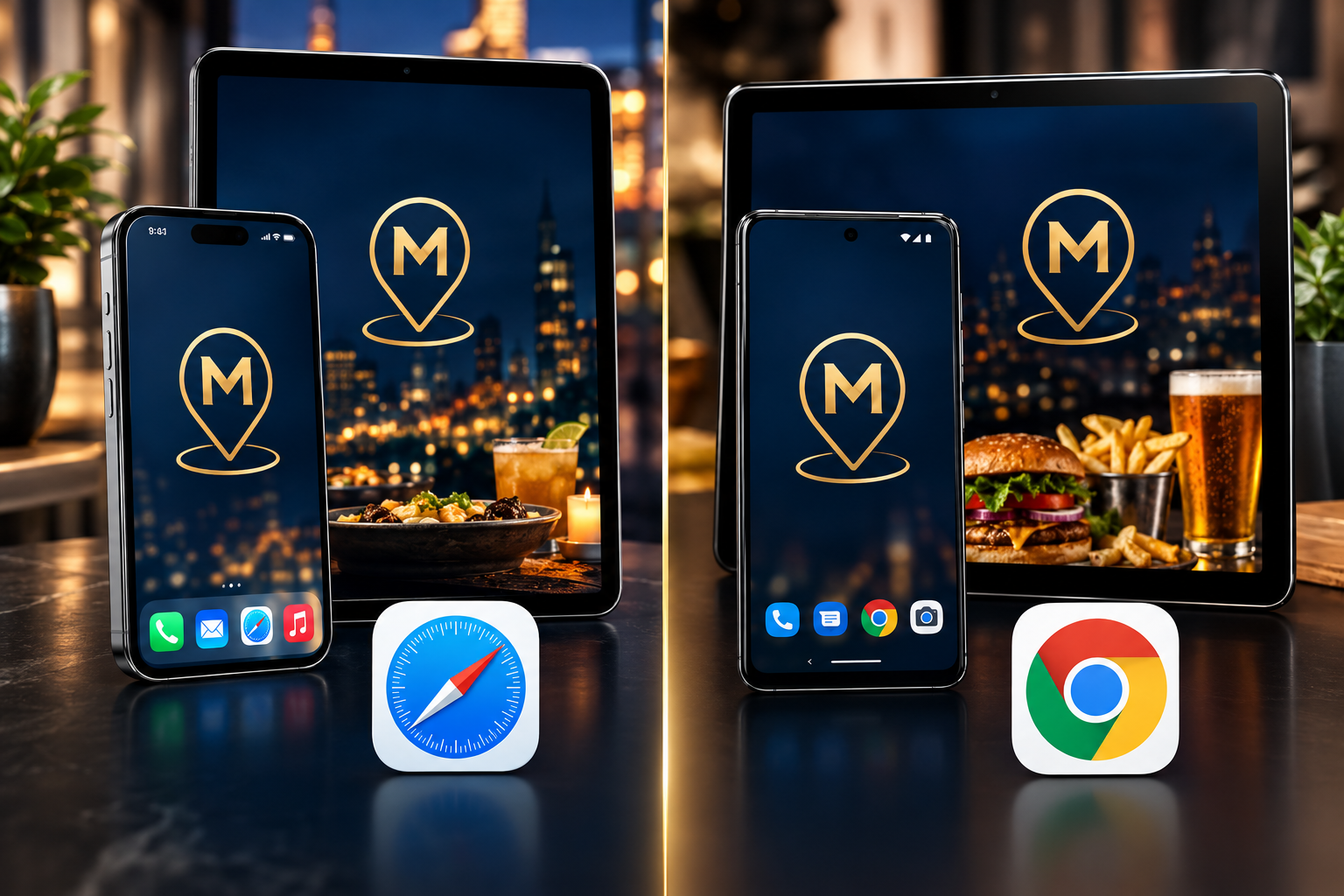
Tap a device above to jump straight to its step-by-step guide.
iPhone & iPad Instructions
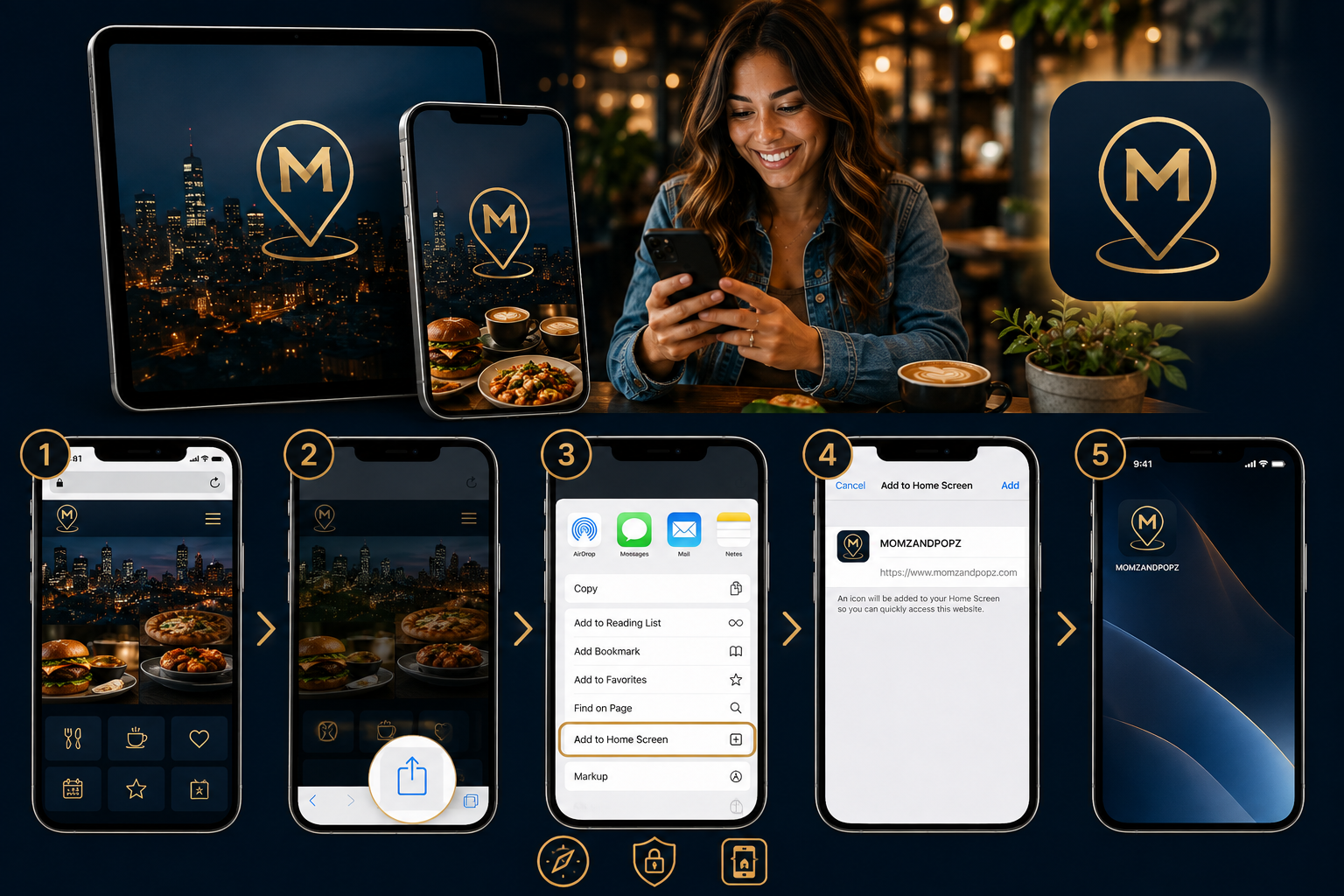
Step 1 — Open MOMZANDPOPZ in Safari
On your iPhone or iPad, open the Safari browser. Visit the official MOMZANDPOPZ website.
Make sure you are viewing it directly in Safari rather than inside another app such as Facebook, Instagram, Gmail, or a messaging app. If the link opened inside another app, choose Open in Safari.
Step 2 — Tap the Share Button
At the bottom of Safari on iPhone — or near the top on some iPads — tap the Share icon. It looks like a square with an arrow pointing upward. A menu will appear.
Step 3 — Choose “Add to Home Screen”
Scroll through the available options and select Add to Home Screen. You may need to scroll down in the Share menu to find it.
Step 4 — Confirm MOMZANDPOPZ
Your device will show a preview of the MOMZANDPOPZ app icon and name. Confirm that the name displays as MOMZANDPOPZ, then tap Add.
The MOMZANDPOPZ icon will now appear on your iPhone or iPad Home Screen.
Step 5 — Open MOMZANDPOPZ
Return to your Home Screen and tap the MOMZANDPOPZ icon. The platform will open in its own app-style window.
From this point forward, you can access MOMZANDPOPZ directly from your Home Screen without opening Safari first.
Android Instructions
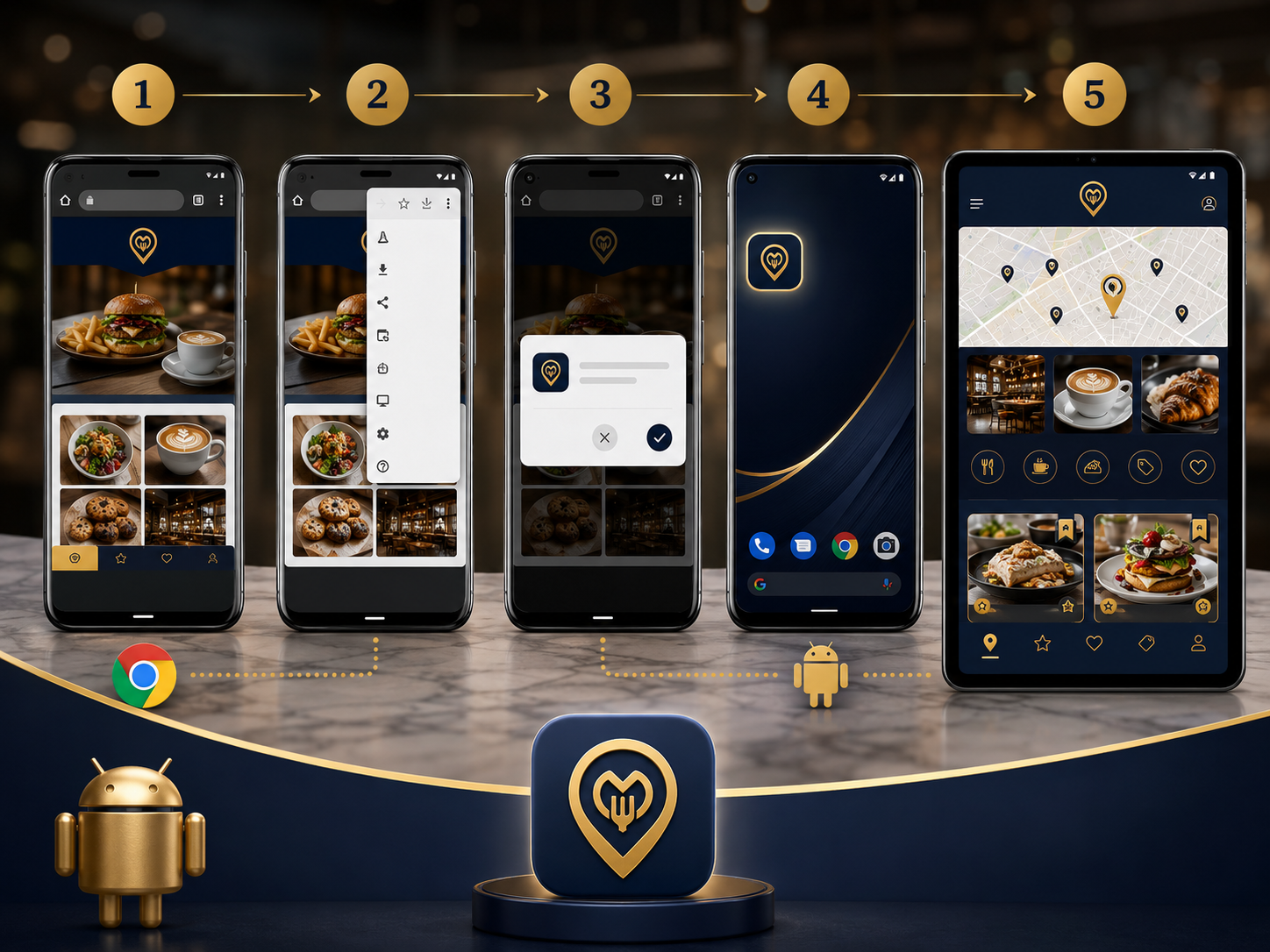
Step 1 — Open MOMZANDPOPZ in Chrome
Open Google Chrome on your Android phone or tablet. Visit the official MOMZANDPOPZ website.
For the best experience, open MOMZANDPOPZ directly in Chrome rather than inside Facebook, Instagram, Gmail, or another app.
Step 2 — Look for the Install Option
Depending on your Android device and Chrome version, you may see an automatic message such as Install MOMZANDPOPZ or Add MOMZANDPOPZ to Home Screen.
If you see the prompt, tap it. If you do not see a prompt, continue to the next step.
Step 3 — Open the Chrome Menu
Tap the three-dot menu in the upper-right corner of Chrome. Look for one of the following options: Install App or Add to Home Screen. Tap the option shown on your device.
Step 4 — Confirm Installation
Your phone will display the MOMZANDPOPZ app name and icon. Tap Install or Add. MOMZANDPOPZ will be added to your device.
Step 5 — Open MOMZANDPOPZ
Find the MOMZANDPOPZ icon on your Home Screen or inside your app list. Tap the icon anytime you want to open the platform.
Already Have a MOMZANDPOPZ Account?
Log In and Pick Up Where You Left Off
Open the MOMZANDPOPZ app from your Home Screen and select Log In. Enter the email address and password associated with your account, then tap Sign In. You'll be taken directly to your MOMZANDPOPZ experience.
New to MOMZANDPOPZ?
Create Your Account
Open MOMZANDPOPZ and select Create Account. Enter first name, last name, email, mobile number, password, and ZIP code, then submit your registration.
Once your account is approved or activated, you'll be able to complete onboarding.
Complete Your Onboarding
Make MOMZANDPOPZ Personal — onboarding only takes a few minutes and helps MOMZANDPOPZ understand what you actually want to discover.
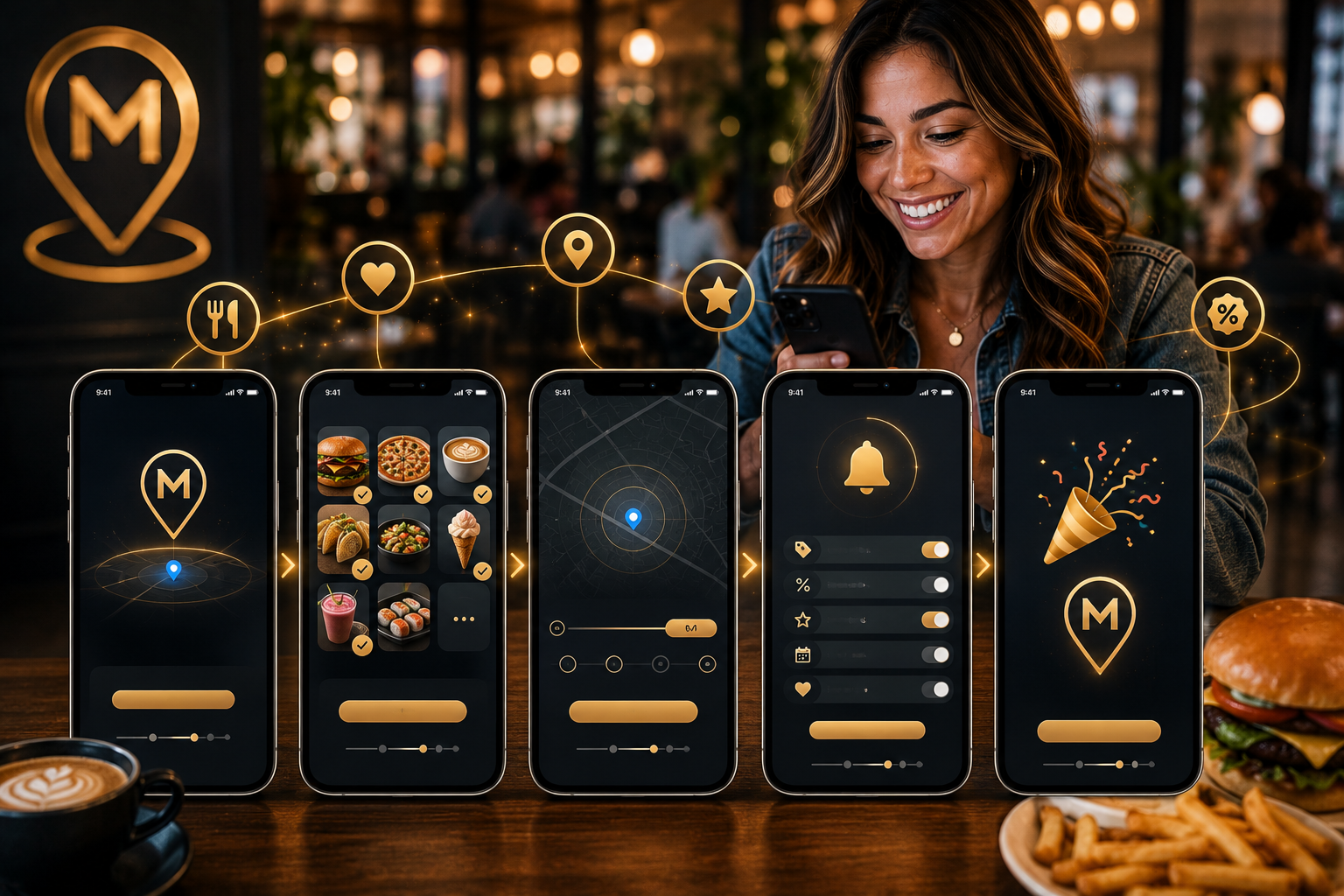
1. Confirm Your Market
Enter your ZIP code. MOMZANDPOPZ will use it to identify your local market, then choose how far you're willing to travel for a great local spot.
You can change this later.
2. Tell Us What You Love
Choose the types of independent businesses and food experiences you want to discover. Examples include:
Or simply choose Show Me Everything.
3. Turn On Your Location
Location access helps MOMZANDPOPZ show you businesses and opportunities near your current location. When your phone asks whether MOMZANDPOPZ may use your location, select your preferred permission option.
You can change location permissions anytime through your device settings.
Turn On MOMZANDPOPZ LIVE™
Never Miss a Great Live Deal Near You
MOMZANDPOPZ LIVE™ lets participating independent businesses release real-time, short-duration deals to nearby consumers. During setup, tell us:
- What kinds of Live Deals you want
- How far you're willing to travel
- Your preferred minimum discount
- Whether you want dine-in, pickup, or delivery offers
- How often you want Live Deal alerts
Turn On Notifications
Let the Good Stuff Find You
Notifications help you hear about:
- LIVE™ Deals
- Flash Deals
- Favorite offers
- New openings
- Events
- Local Legends™ voting
- Food Passport™
- Member benefits
- Special Drops
Depending on your account settings, you may receive notifications through App/browser notifications, SMS, or Email. You decide what you want and how often.
Start Discovering
Once onboarding is complete, your MOMZANDPOPZ experience is ready to go. Start with:
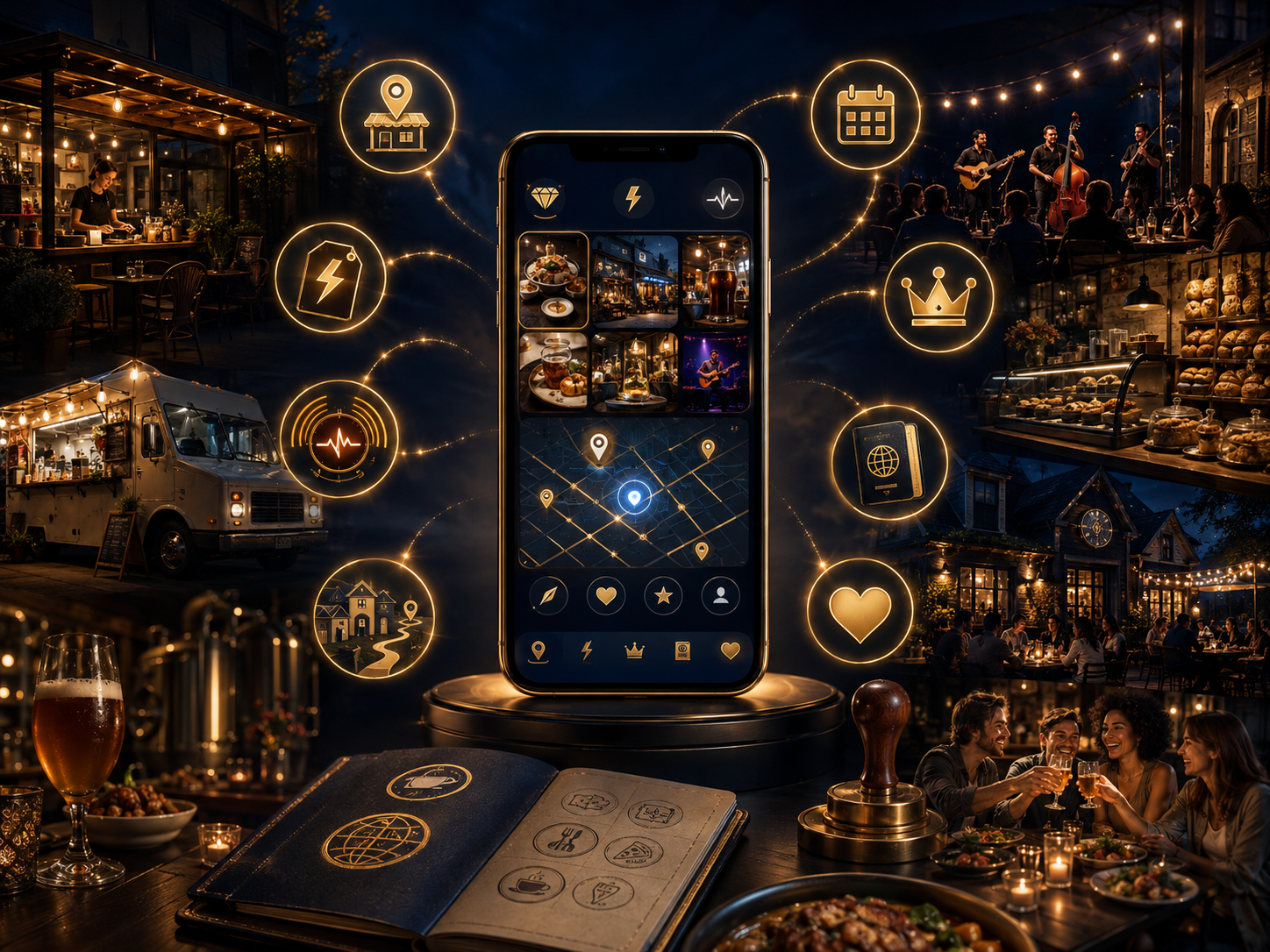
Hidden Gems
Find independent businesses around you.
Flash Deals
Discover limited-time savings from participating local businesses.
MOMZANDPOPZ LIVE™
See real-time deals happening near you.
Neighborhood Discovery
Explore your city one neighborhood at a time.
Local Events
Find tastings, trivia, live music, coffee classes, brewery events, and more.
Local Legends™
Vote for the independent businesses that make your city special.
Food Passport™
Turn local discovery into a journey worth completing.
Favorites
Save the businesses you love and find them again anytime.
Follow Your Favorite Businesses
Build Your Local Network
When you find a business you love, tap ♡ Follow. Following businesses makes it easier to:
- Find them again
- See future deals
- Discover events
- Receive Live Deal alerts
- Keep up with new offerings
- Support local success
Try following at least 5 local businesses when you first join.
Returning to MOMZANDPOPZ
Just Tap the Icon
After installing MOMZANDPOPZ on your Home Screen, you do not need to return to this installation page. Simply locate the MOMZANDPOPZ icon on your phone or tablet and tap it.
Your account, favorites, preferences, memberships, and discovery experience stay connected to your login.
Forgot Your Password?
On the MOMZANDPOPZ login screen, select Forgot Password?. Enter the email address associated with your account.
Follow the password-reset instructions sent to your email, then return to MOMZANDPOPZ and log in using your new password.
Using a New Phone or Tablet?
No problem. You do not need to create another MOMZANDPOPZ account. Simply:
- Open MOMZANDPOPZ on your new device.
- Add MOMZANDPOPZ to your Home Screen.
- Open the app.
- Select Log In.
- Enter your existing account information.
Your account will remain associated with your login.
Don't See “Add to Home Screen” or “Install App”?
iPhone / iPad: Make sure you are using Safari. If MOMZANDPOPZ opened inside Instagram, Facebook, Gmail, or another app, choose Open in Safari and try again.
Android: Make sure you are using Google Chrome. Open Chrome's three-dot menu and look for Install App or Add to Home Screen. Also ensure your browser is up to date.
MOMZANDPOPZ Is Private
Why Isn't MOMZANDPOPZ in the App Store?
MOMZANDPOPZ is distributed directly through our own platform. That means you do not need to search for us in the Apple App Store or Google Play Store.
Access begins through the official MOMZANDPOPZ website. This gives MOMZANDPOPZ greater control over how the platform is accessed, updated, and experienced.
Always use the official MOMZANDPOPZ website to access or install the platform.
Your 60-Second MOMZANDPOPZ Checklist
Before you leave, make sure you've done these: